Active Chart Highlighter
Visual indicator showing which chart is currently active
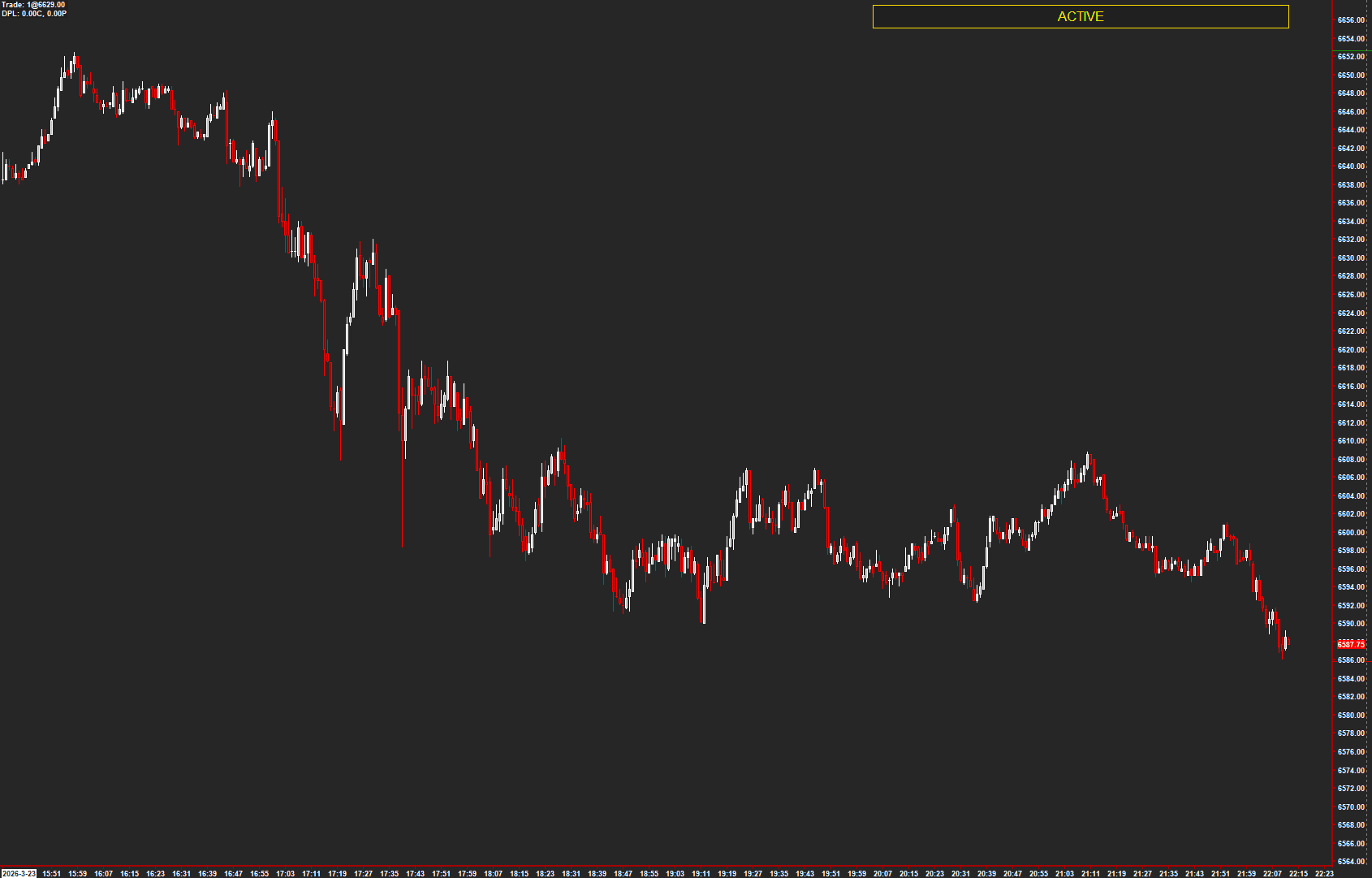
Provides a visual highlight on the currently active chart window, making it immediately obvious which chart has focus. Draws a configurable colored band with optional badge text at the top of the active chart. Essential for multi-chart setups where you need to quickly identify your active workspace.
The Concept
In multi-chart trading setups, knowing which chart is currently active prevents costly mistakes like placing orders on the wrong instrument. Active Chart Highlighter draws a configurable colored band with optional badge text at the top of whichever chart window has focus. When you click away, the band disappears — providing constant, ambient workspace awareness.
How to Read It
The study is purely visual — there are no trading signals.
- A colored band (default gold) appears at the top of the active chart window
- The band disappears when focus moves to a different chart
- Optional badge text (default "ACTIVE") confirms which chart has focus
- All visual properties — color, size, transparency, position, text — are fully configurable
Practical Tips
Apply this study to every chart in your layout. Adjust the Band Height and Transparency for your preference — subtle enough not to distract, visible enough to notice immediately. Use different Custom Text per chart (e.g., "ES", "NQ") for even quicker identification. The Anchor Mode can pin the band to the chart end or center it on the visible area.
Input & Settings
| No. | Input Name | Function |
|---|---|---|
| 1 | Band Height (pixels) | Height of the highlight band in pixels. Default: 28. |
| 2 | Top Offset (pixels) | Distance from the top of the chart region to the highlight band. Default: 6. |
| 3 | Bars To Cover | Number of bars the band covers when in End anchor mode or Fixed width mode. Default: 600. |
| 4 | Band Color | Color of the highlight band. Default: Gold. |
| 5 | Transparency | Transparency of the band. 0 = fully opaque, 255 = invisible. Default: 85. |
| 6 | Show Badge Text | When enabled, displays configurable text inside the highlight band. Default: Yes. |
| 7 | Text Color | Color of the badge text. Default: Black. |
| 8 | Text Position | Horizontal position of the badge text. 0 = Left, 1 = Center, 2 = Right. Default: Center. |
| 9 | Text Bars Offset | Offset the text position by this many bars. Positive = right, negative = left. Default: 0. |
| 10 | Text Vertical Offset (pixels) | Vertical pixel offset for the badge text. Default: 0. |
| 11 | Custom Text | The text displayed inside the highlight band. Default: 'ACTIVE'. |
| 12 | Anchor Mode | Controls where the band is anchored. 0 = End of chart, 1 = Visible middle. Default: End. |
| 13 | Width Mode | Controls how the band width is determined. 0 = Percentage of visible bars, 1 = Fixed number of bars. Default: Percent. |
| 14 | Width Percent of Visible | When Width Mode is Percent, sets the band width as a percentage of visible bars. Min: 1, Max: 100. Default: 60. |
| 15 | Band Horizontal Offset (pixels) | Horizontal pixel offset for the band position. Positive = right, negative = left. Default: 0. |
Height of the highlight band in pixels. Default: 28.
Distance from the top of the chart region to the highlight band. Default: 6.
Number of bars the band covers when in End anchor mode or Fixed width mode. Default: 600.
Color of the highlight band. Default: Gold.
Transparency of the band. 0 = fully opaque, 255 = invisible. Default: 85.
When enabled, displays configurable text inside the highlight band. Default: Yes.
Color of the badge text. Default: Black.
Horizontal position of the badge text. 0 = Left, 1 = Center, 2 = Right. Default: Center.
Offset the text position by this many bars. Positive = right, negative = left. Default: 0.
Vertical pixel offset for the badge text. Default: 0.
The text displayed inside the highlight band. Default: 'ACTIVE'.
Controls where the band is anchored. 0 = End of chart, 1 = Visible middle. Default: End.
Controls how the band width is determined. 0 = Percentage of visible bars, 1 = Fixed number of bars. Default: Percent.
When Width Mode is Percent, sets the band width as a percentage of visible bars. Min: 1, Max: 100. Default: 60.
Horizontal pixel offset for the band position. Positive = right, negative = left. Default: 0.
Get Access to Every Study
All studies are included with the Gold License — proprietary Sierra Chart tools, Discord community access, and the full AMT framework.
Get the Gold License — $125/mo