
AMT Active Chart Highlighter
Visual band on the focused chart for multi-chart identification
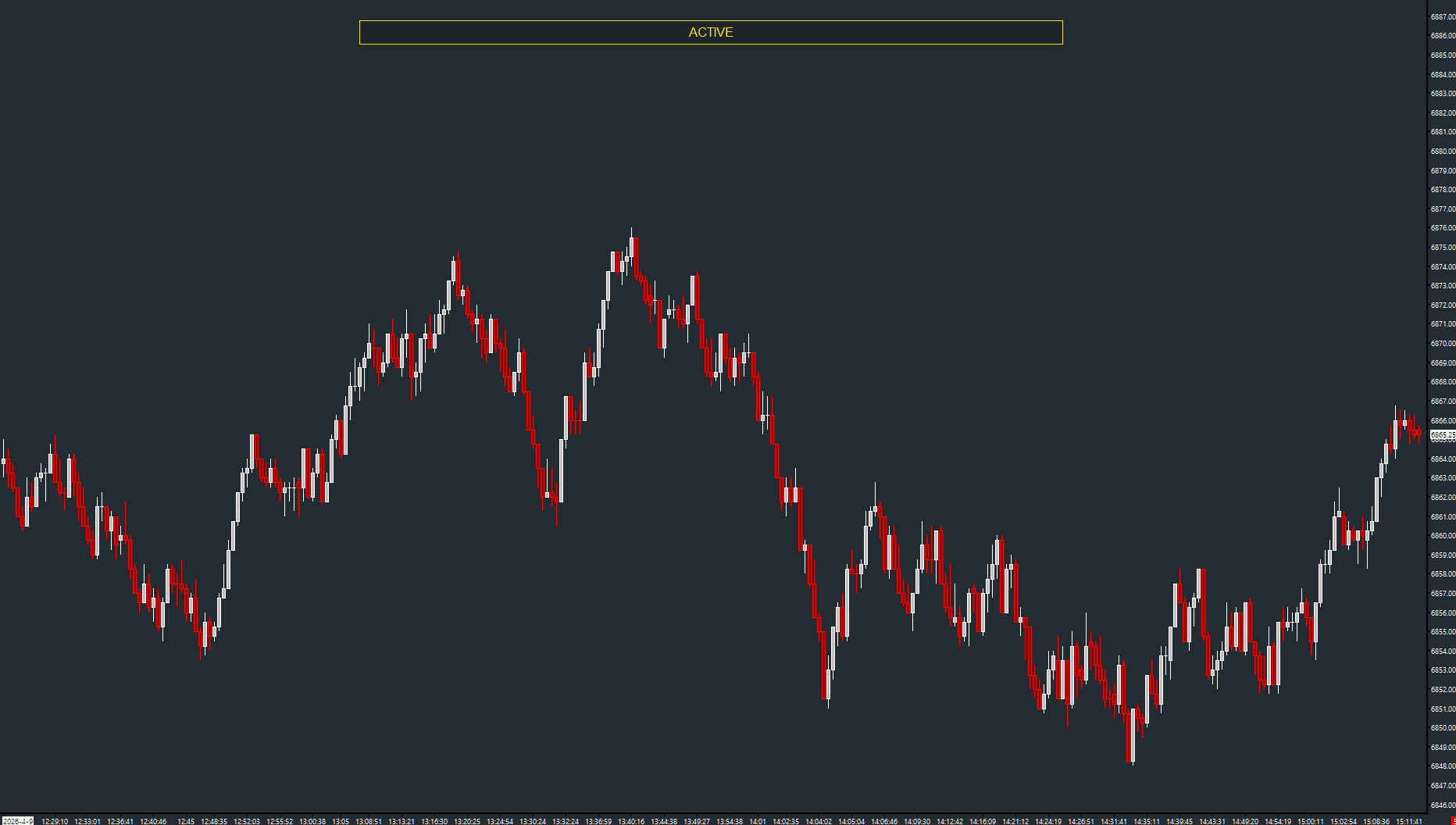
Draws a colored band at the top of the chart when the window has focus. Fully configurable position, width, transparency, anchor mode, and badge text. Essential for multi-chart setups where you need to instantly identify your active workspace.
The Concept
When trading with multiple charts open — often 6, 8, or more — it's easy to lose track of which chart is active. A misplaced order on the wrong chart is a real risk. Active Chart Highlighter solves this by drawing a visible colored band (with optional text badge) only on the chart that currently has keyboard focus. When you click away, the band disappears.
How to Read It
The study is purely visual — there are no trading signals.
- A gold band (default) appears at the top of the active chart window
- The band disappears when you click on a different chart
- The 'ACTIVE' badge text confirms which chart has focus
- All visual properties are configurable: color, transparency, position, width, and text
Practical Tips
Apply this study to every chart in your layout. The instance-based drawing IDs ensure multiple copies don't conflict. Adjust the Anchor Mode to 'Visible Middle' if you want the band centered on your visible area rather than pinned to the chart end. Use different Custom Text per chart (e.g., 'ES', 'NQ') for even quicker identification.
Input & Settings
| No. | Input Name | Function |
|---|---|---|
| 1 | Band Height (pixels) | Height of the highlight band in pixels. Default: 28. |
| 2 | Top Offset (pixels) | Distance from the top of the chart region to the highlight band. Default: 6. |
| 3 | Bars To Cover | Number of bars the band covers in End anchor or Fixed width mode. Default: 600. |
| 4 | Band Color | Color of the highlight band. Default: Gold. |
| 5 | Transparency | Transparency of the band. 0 = fully opaque, 255 = invisible. Default: 85. |
| 6 | Show Badge Text | When enabled, displays configurable text inside the highlight band. Default: Yes. |
| 7 | Text Color | Color of the badge text. Default: Black. |
| 8 | Text Position | Horizontal position of the badge text. 0 = Left, 1 = Center, 2 = Right. Default: Center. |
| 9 | Text Bars Offset | Offset the text position by this many bars. Positive = right, negative = left. Default: 0. |
| 10 | Text Vertical Offset (pixels) | Vertical pixel offset for the badge text. Default: 0. |
| 11 | Custom Text | The text displayed inside the highlight band. Default: 'ACTIVE'. |
| 12 | Anchor Mode | Controls where the band is anchored. 0 = End of chart, 1 = Visible middle. Default: End. |
| 13 | Width Mode | Controls how the band width is determined. 0 = Percentage of visible bars, 1 = Fixed number of bars. Default: Percent. |
| 14 | Width Percent of Visible | Band width as a percentage of visible bars when Width Mode is Percent. Range: 1–100. Default: 60. |
| 15 | Band Horizontal Offset (pixels) | Horizontal pixel offset for the band position. Default: 0. |
Height of the highlight band in pixels. Default: 28.
Distance from the top of the chart region to the highlight band. Default: 6.
Number of bars the band covers in End anchor or Fixed width mode. Default: 600.
Color of the highlight band. Default: Gold.
Transparency of the band. 0 = fully opaque, 255 = invisible. Default: 85.
When enabled, displays configurable text inside the highlight band. Default: Yes.
Color of the badge text. Default: Black.
Horizontal position of the badge text. 0 = Left, 1 = Center, 2 = Right. Default: Center.
Offset the text position by this many bars. Positive = right, negative = left. Default: 0.
Vertical pixel offset for the badge text. Default: 0.
The text displayed inside the highlight band. Default: 'ACTIVE'.
Controls where the band is anchored. 0 = End of chart, 1 = Visible middle. Default: End.
Controls how the band width is determined. 0 = Percentage of visible bars, 1 = Fixed number of bars. Default: Percent.
Band width as a percentage of visible bars when Width Mode is Percent. Range: 1–100. Default: 60.
Horizontal pixel offset for the band position. Default: 0.
Free with the AMT Toolkit
This study is part of the AMT Toolkit — a free collection of Sierra Chart studies for orderflow, market structure, and chart utilities. 100% free, with no AMT Gold membership or credit card required.
Sierra Chart and applicable market-data fees are separate.
Get the AMT Toolkit — Free